
How to Use PanelCoach
A step-by-step walkthrough of every feature — from your dashboard overview to getting AI-powered feedback on your interview technique.
Getting Started
Create your account and log in to start practising. You'll land on the Dashboard — your home base showing stats, recent questions, and quick actions. The bottom navigation has four tabs:
- ● Dashboard
Overview of your progress and quick actions - ● Add
Write a new practice answer (tap again to pick a category) - ● Review
Browse saved questions by category - ● Library
Curated question bank with probability tiers
Dashboard
The Dashboard gives you an at-a-glance overview of your interview preparation progress.
Stats Overview
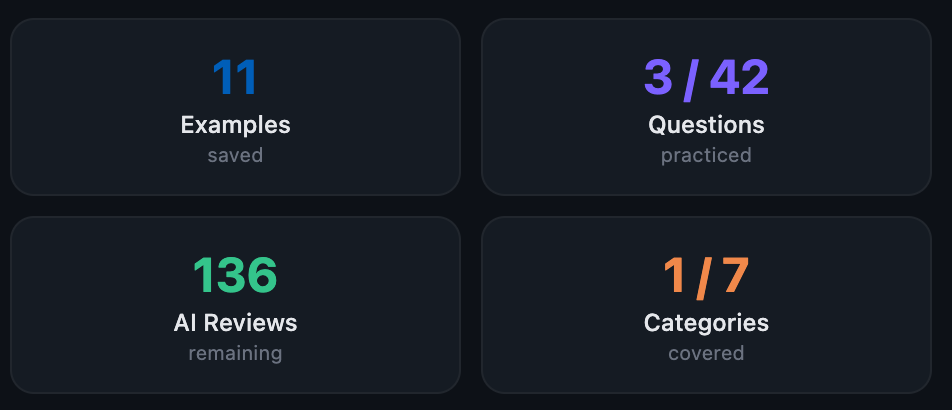
Four stat cards show your total questions saved, questions practised from the bank, remaining AI reviews, and how many of the 7 categories you've covered.
Quick Actions
Three shortcut buttons let you jump straight into action: start a New Question, open a Random Question for surprise revision, or browse the Library.

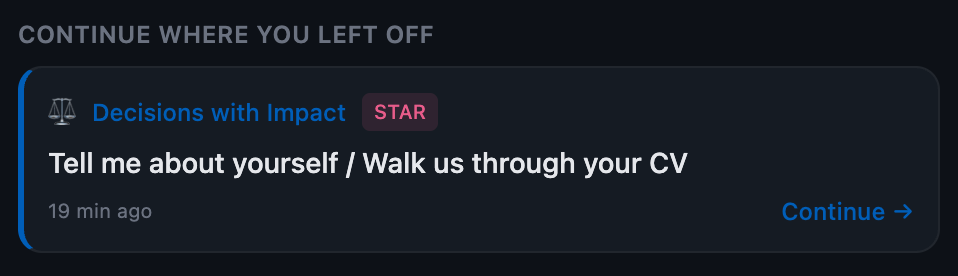
Continue Where You Left Off
If you have a recent question in progress, a card appears so you can jump straight back to it.
Your Questions
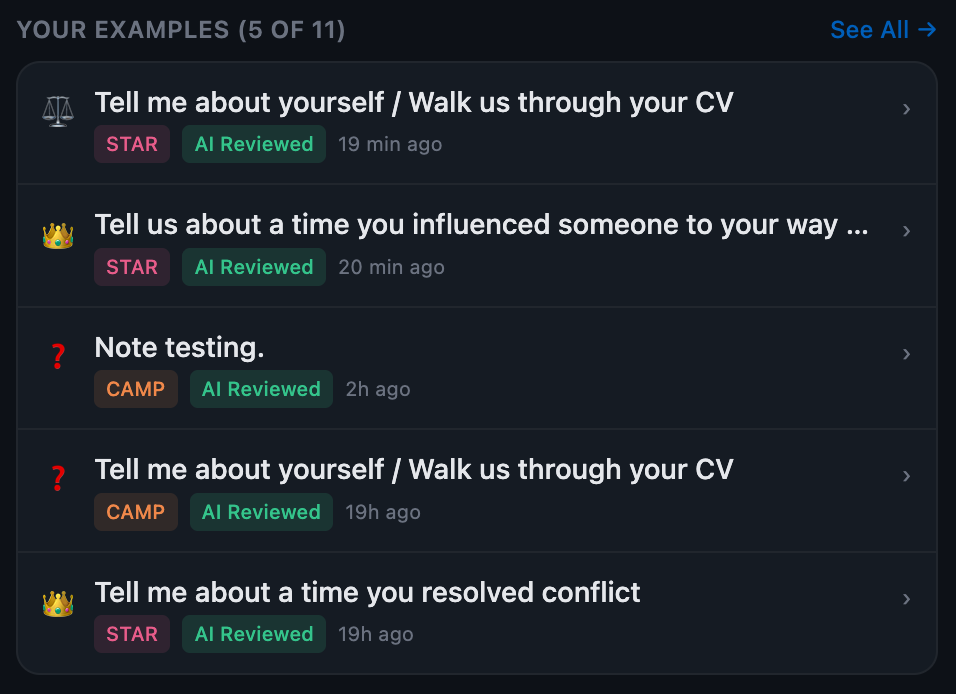
A list of your most recent questions with their framework tag, AI review status, and time since creation. Tap any row to jump to that question in the Review tab.
Category Coverage
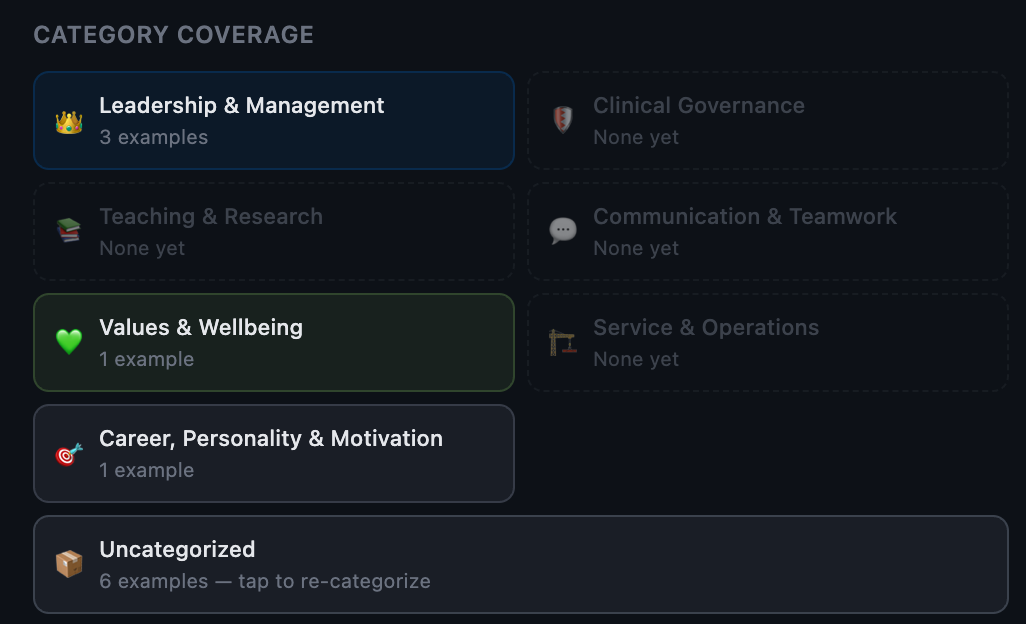
A grid showing your progress across all 7 interview topic categories. Categories with saved questions are highlighted — empty ones show "None yet" so you can see where to focus next.
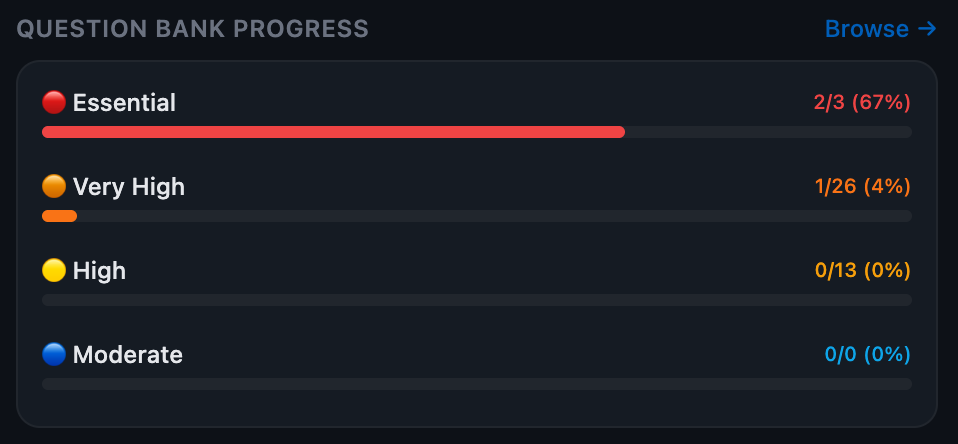
Question Bank Progress
Progress bars show how many questions you've practised in each probability tier — Essential, Very High, High, and Moderate. Tap "Browse" to jump to the Library.
Choosing a Framework
PanelCoach supports four answer frameworks. Tap the framework selector at the top of the Add form to switch between them:
Situation → Task → Action → Result. The classic competency framework for behavioural questions.
Clinical → Academic → Management → Personal. For structured panel-style answers.
Seek Info → Patient Safety → Initiative → Escalate → Support. For clinical governance scenarios.
Free-form answer. For open-ended questions that don't fit a structured framework.

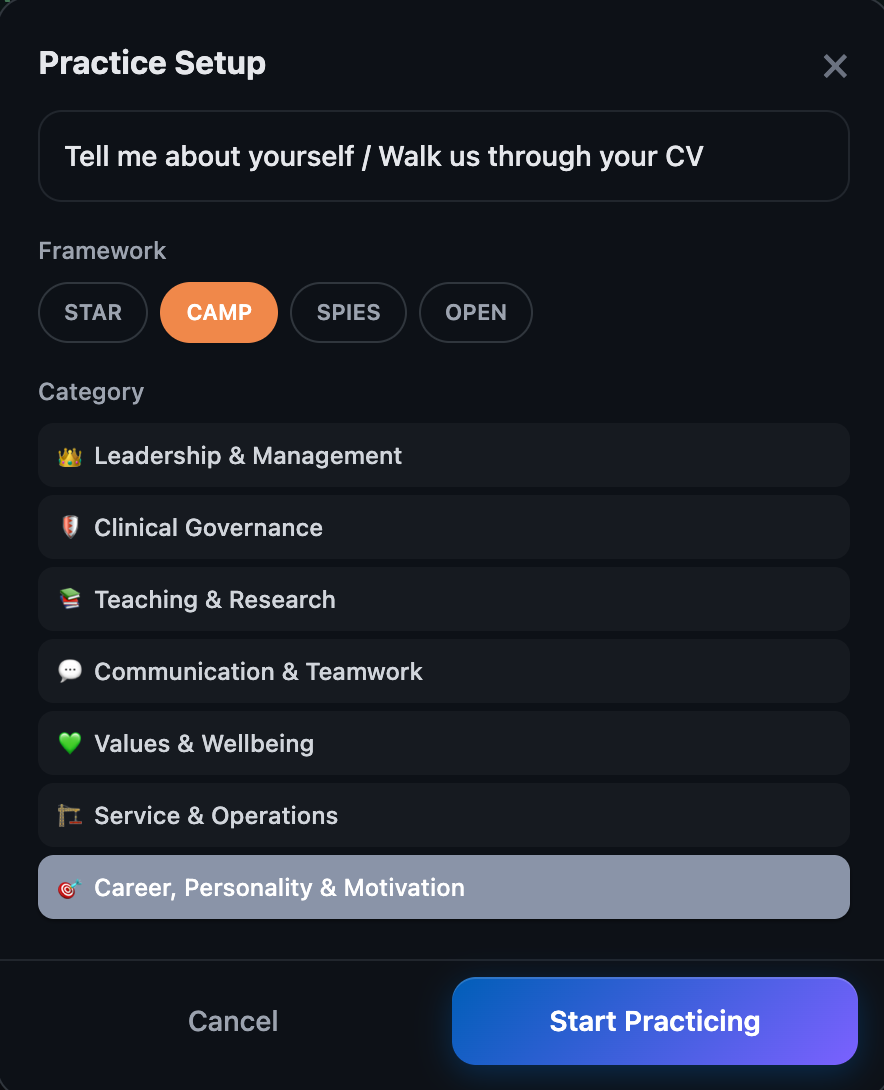
You can also choose your framework when starting a question from the Library. The Practice Setup popup lets you override the suggested framework before you begin writing.
Selecting a Category
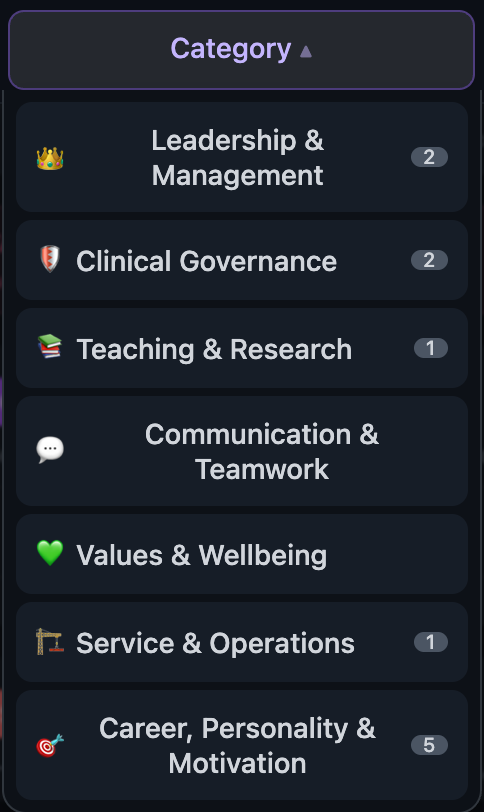
Each question is tagged with one category. When you're on the Add tab, tap the tab again to open the category picker — it shows 7 broad topic domains covering all NHS consultant interview themes. Pick the one that best fits your answer.
Question Bank
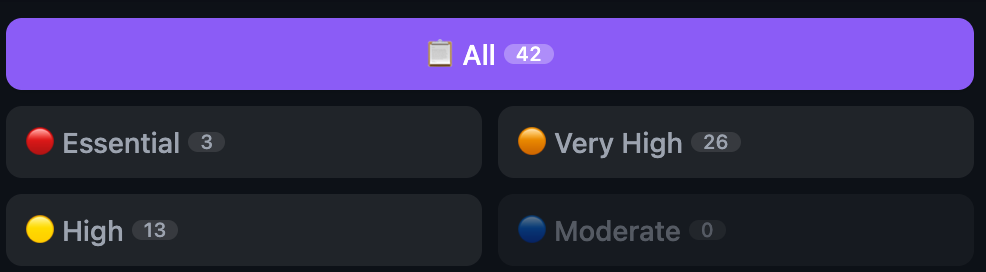
The Library tab contains a curated bank of real NHS consultant interview questions, ranked by probability. Questions are grouped into tiers:
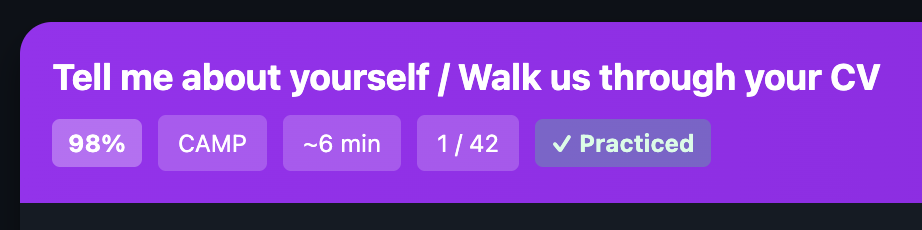
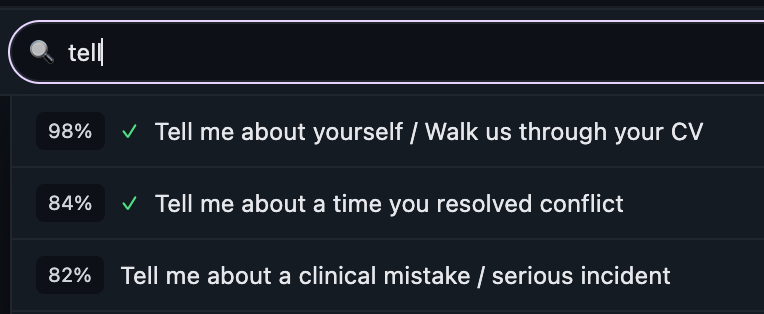
Each question card shows the probability percentage, suggested framework, time limit, and whether you've already practised it. Use the search bar to find specific topics.
Practice Setup
When you tap "Practice This Question", a setup popup appears letting you choose your preferred framework and category before starting. The question's suggested framework and category are pre-selected, but you can change either one.
Writing Your Answer
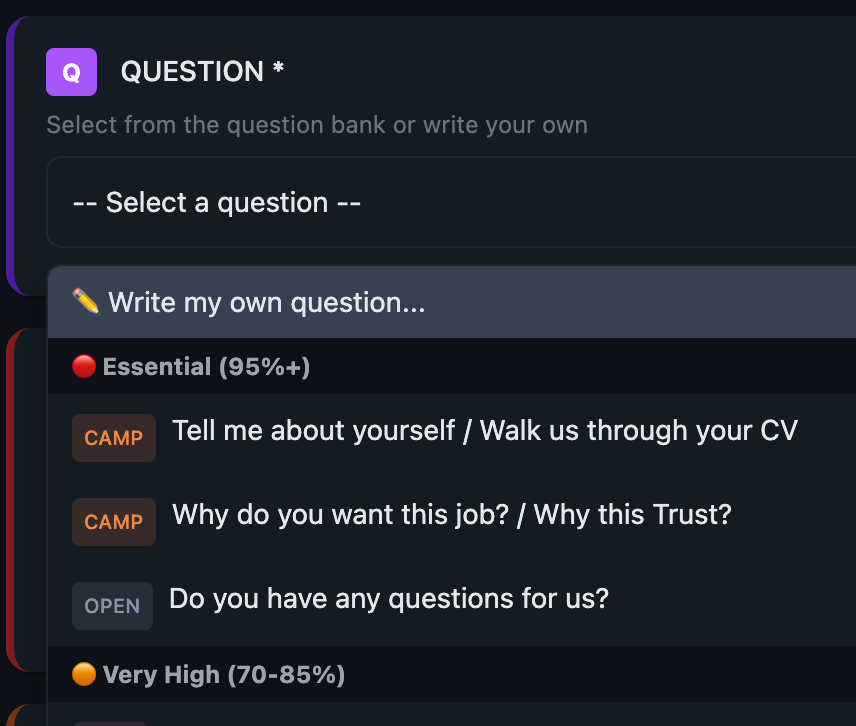
The Add tab is where you write your practice answers. After selecting a framework and category, choose a question from the dropdown — questions are grouped by probability tier:
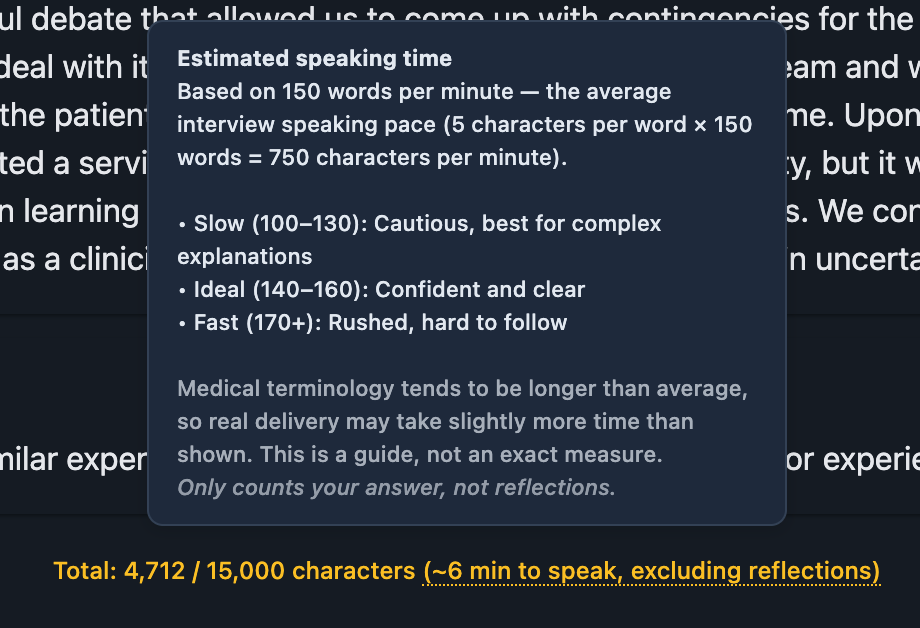
As you type, you'll see a live character count and estimated speaking time at the bottom of the form. Your draft is auto-saved so you won't lose work if you navigate away.

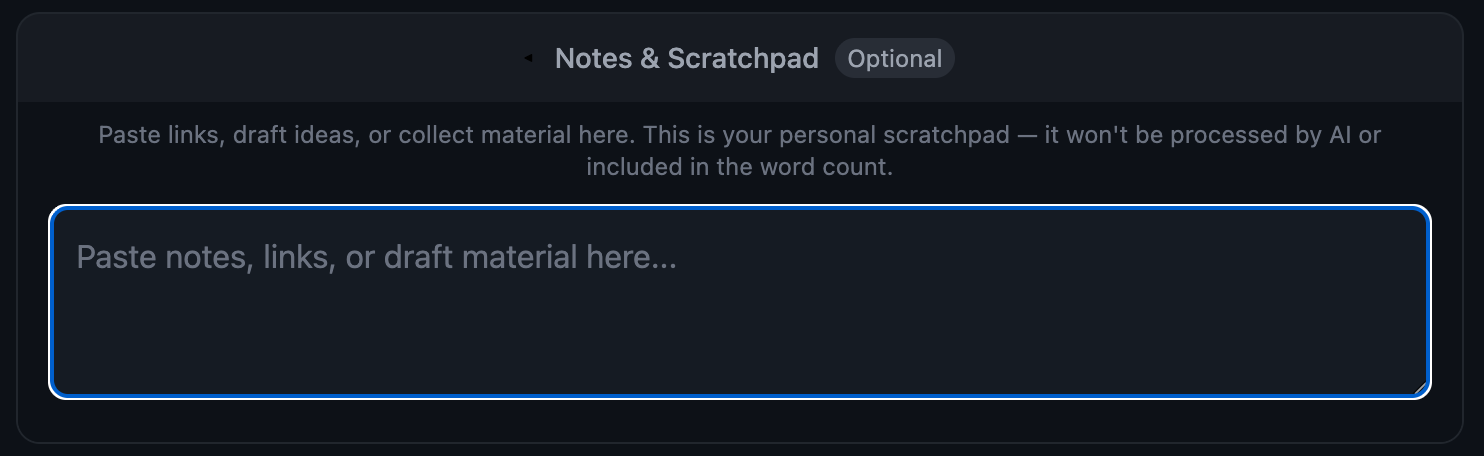
Notes & Scratchpad
Below your answer, there's an optional Notes & Scratchpad area where you can paste links, draft ideas, or collect reference material. This is your personal space — it won't be processed by AI or included in the word count.
Reflections & Follow-up Prep
Below the main answer fields, there's a collapsible Reflections section. This helps you prepare for follow-up questions the panel might ask. It includes six optional fields:
- ● Key Learning
What was the main takeaway? - ● Skills Demonstrated
What competencies did you show? - ● Challenges Faced
What made this difficult? - ● Feedback Received
What did others say? - ● What I Learned
How did this change your practice? - ● What I'd Do Differently
How would you improve?

AI Feedback
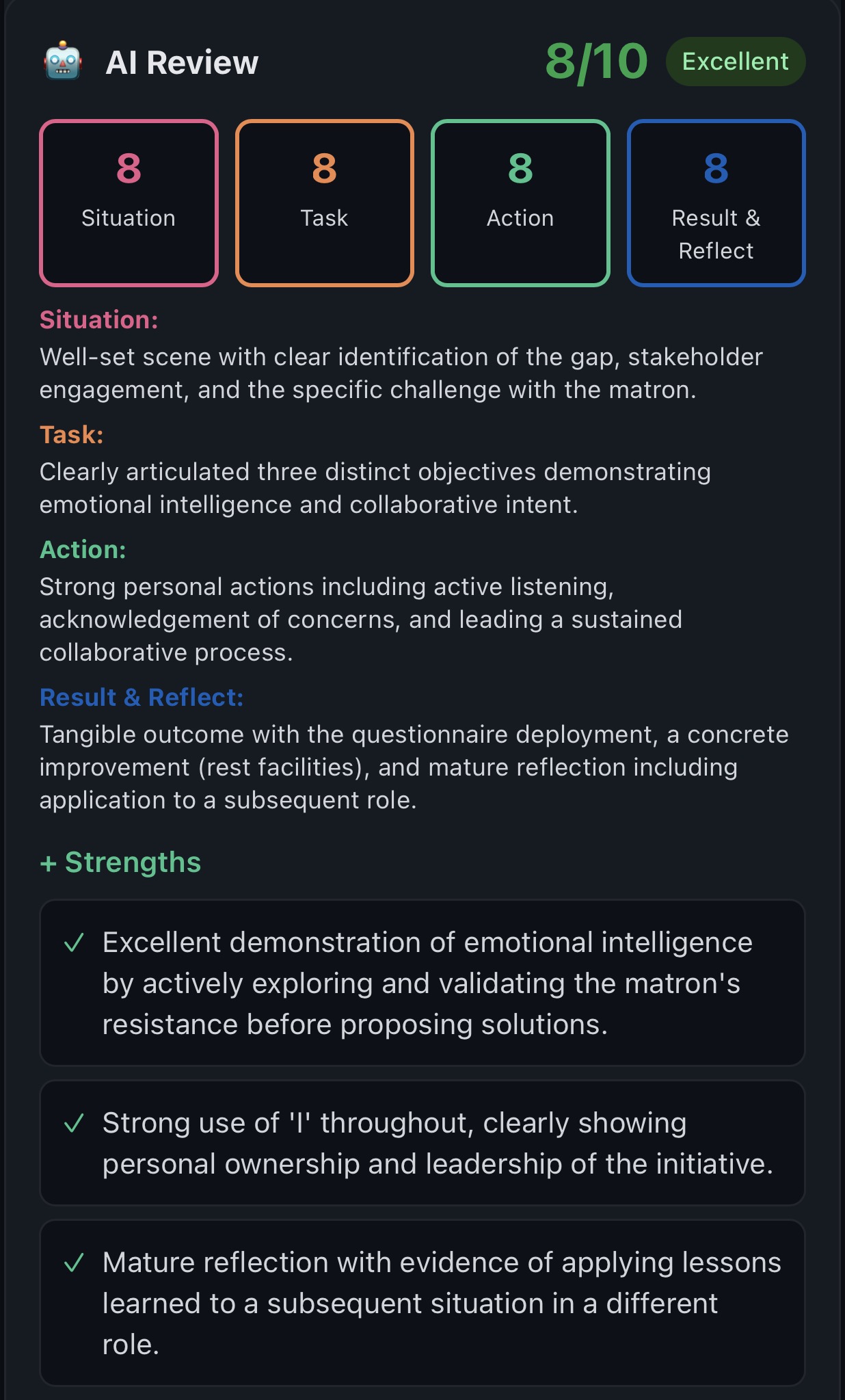
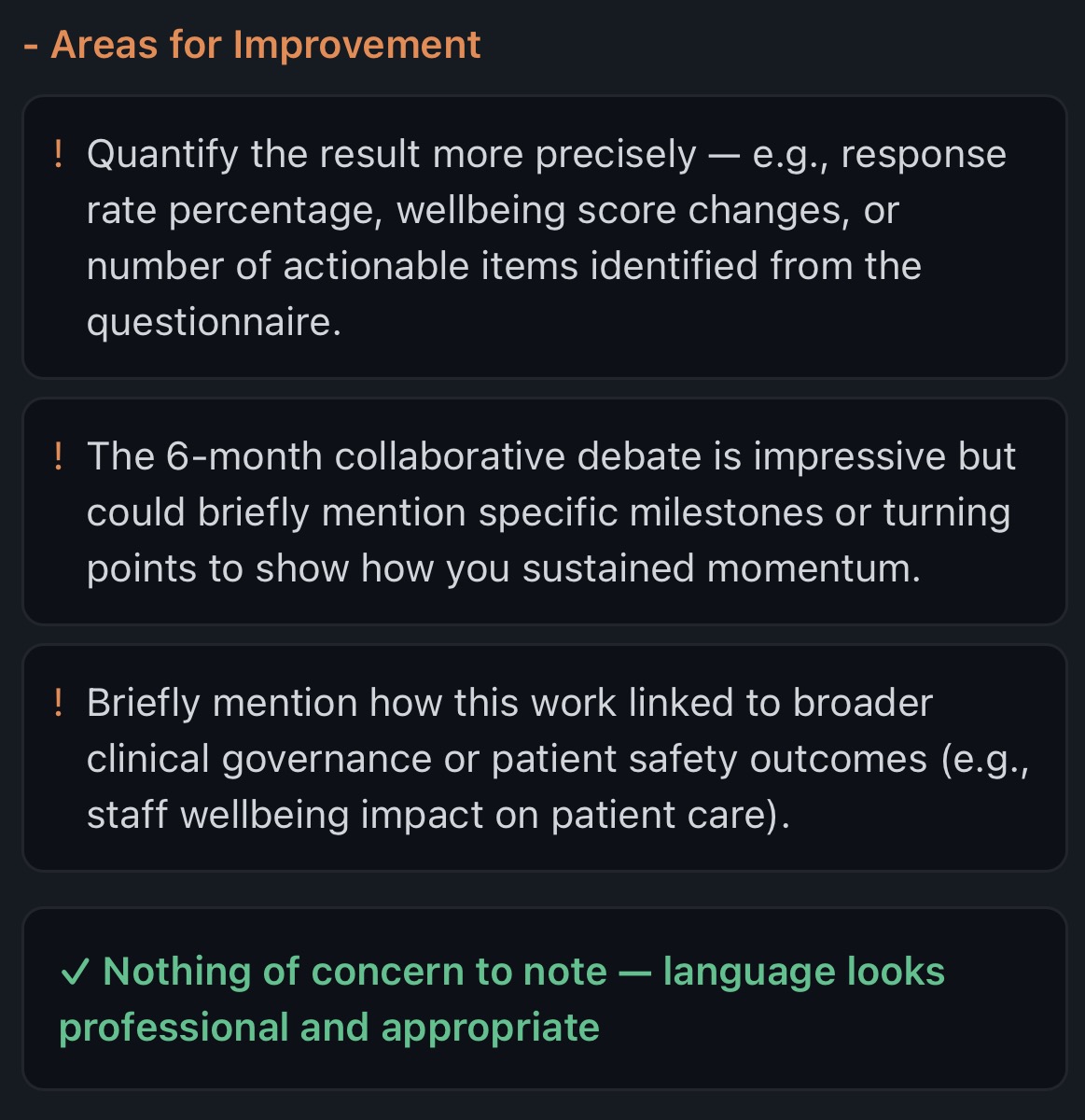
PanelCoach uses Claude AI to review your answers and provide detailed feedback. After saving a question, tap "Get AI Review on Draft" to request a review. The AI analyses your answer in 20–25 seconds and returns:
- ● Overall score
Out of 10 - ● Framework scores
For each section (e.g., Situation 8/10, Task 6/10) - ● Strengths
What you did well - ● Areas for improvement
Specific suggestions - ● Language red flags
Phrases to avoid with better alternatives - ● Medical interview tips
Context-specific advice - ● Reflections review
Feedback on your follow-up preparation

Reviewing Questions
The Review tab lets you browse all your saved questions. Tap the Review tab to open the category dropdown and filter by topic. Each card shows your full answer with framework sections colour-coded.
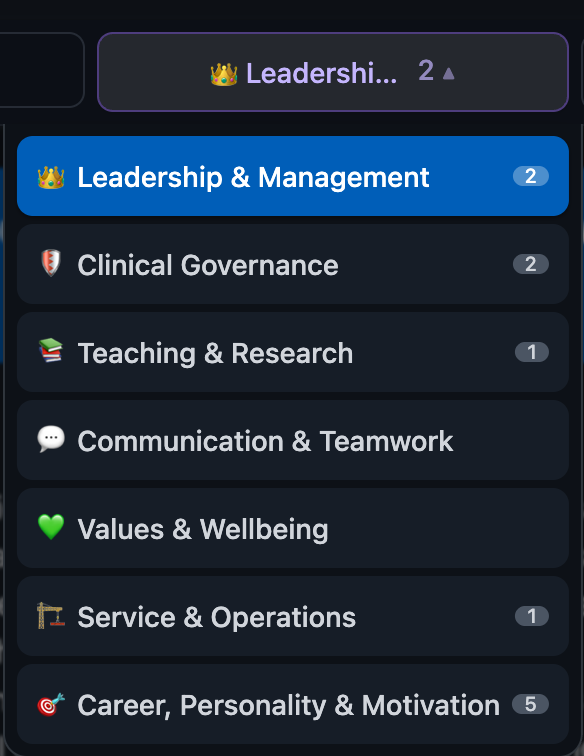
Use the floating arrow buttons at the bottom to navigate between questions. The counter shows your global position across all categories (e.g., "2 / 11").
Stopwatch
The header bar includes a built-in stopwatch so you can time yourself speaking an answer aloud — no need for a separate phone timer. It starts at 0:00 and counts up.
- ● Tap
Start or pause - ● Double-tap
Reset back to 0:00 - ● Auto-resets
When you navigate to a different question

From any review card, you can:
- ● Edit
Modify your answer - ● Delete
Remove the question - ● Get AI Feedback
Request a review - ● Random
Jump to a random question for surprise practice

Plans & Subscriptions
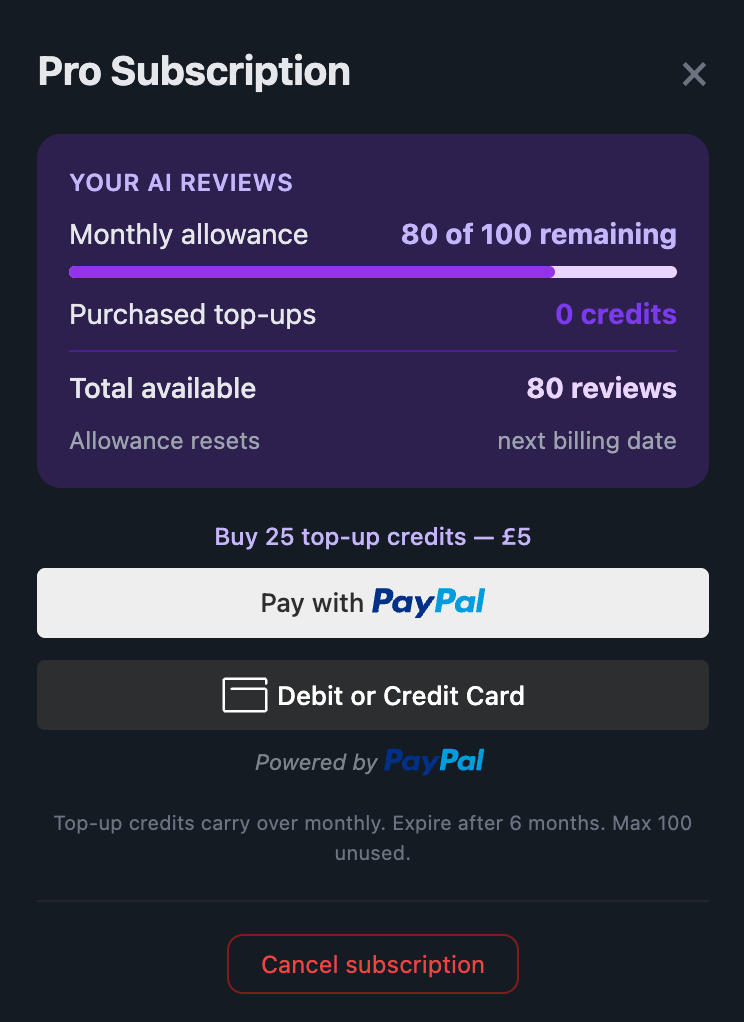
Every feature except the AI review allowance is included on the Free plan. The three tiers differ only in how many AI reviews you get. Tap the plan badge in the header or go to Account Menu → Manage Subscription to view options:
- Unlimited saved questions
- Full question bank
- Language analysis & red flags
- PDF flashcard export
- 5 AI reviews (lifetime)
- Everything in Free
- 5 AI reviews/month
- Everything in Free
- 100 AI reviews/month
- Top-up credits available
Settings & Account
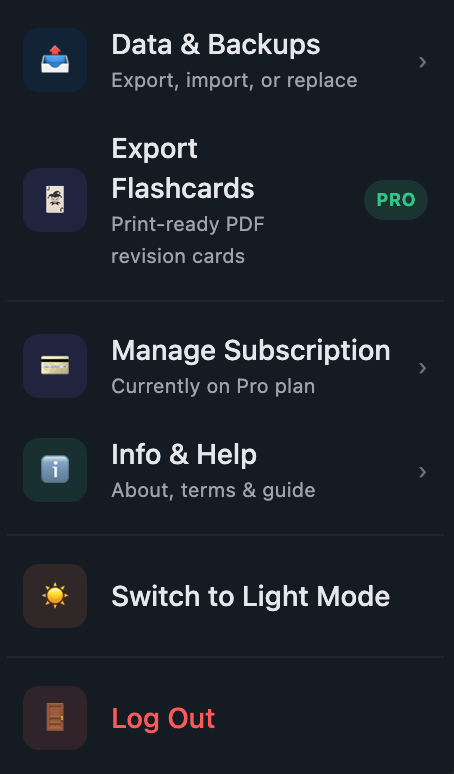
Open the account menu (top-right) to access all settings. From here you can:
- ● Data & Backups
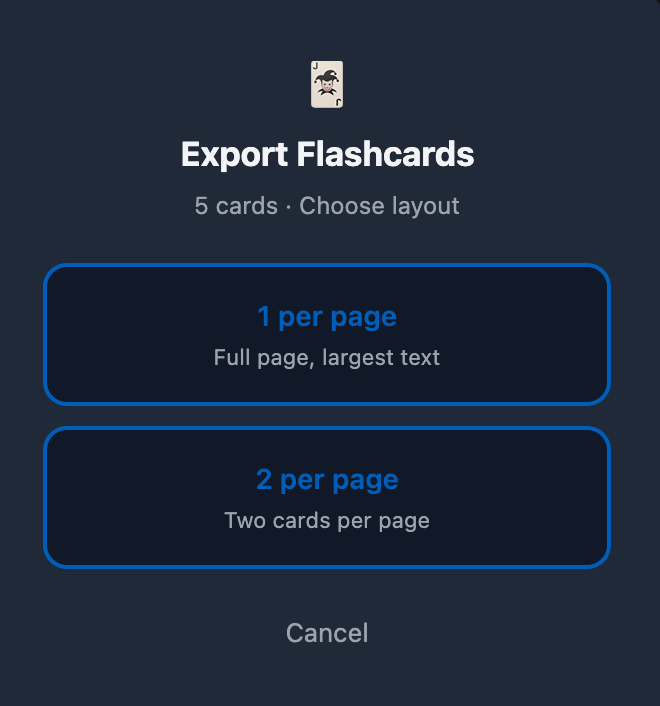
Export, import, or replace your data - ● Export Flashcards
Print-ready PDF revision cards - ● Manage Subscription
View or change your plan - ● Info & Help
About, terms, and this features guide - ● Light / Dark Mode
Toggle the colour theme
Ready to start practising?
Open PanelCoach →